Start with the official Genie 4 waitlist. If you already have Project Genie, check which model the product actually offers before following a tutorial.
First, choose the right route
The practical first step is to check your access, not to write a longer prompt. Google’s launch post describes a trusted-tester preview and an upcoming Project Genie rollout. This guide separates that announcement from the existing product instructions.
| Your situation | Next step |
|---|---|
| You want Genie 4 specifically | Open the official waitlist and read the current access terms. |
| You already have Project Genie | Check the model and features shown in your account. Product access is not evidence of a Genie 4 upgrade. |
| You only want to understand it | Start with the demo guide; no subscription is needed to watch the official film. |
What you can do in the current Project Genie product
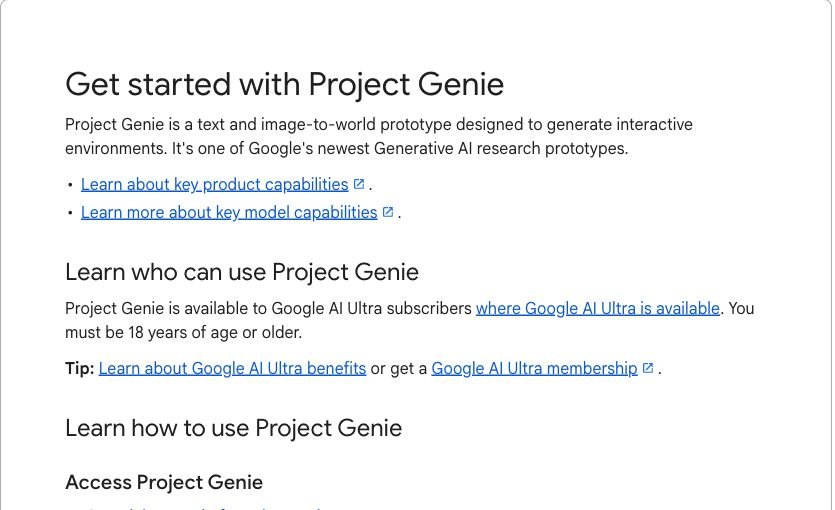
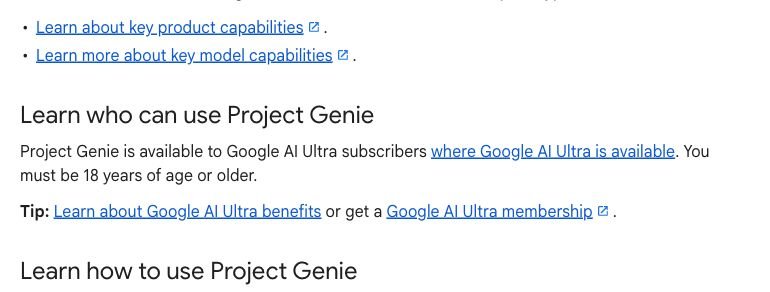
Google’s help article describes a separate, existing workflow: sign in with an eligible personal Google Account, describe an environment and character, choose a viewpoint, and generate a world. It documents Ultra membership and an age requirement of 18+. These are current Project Genie instructions, not confirmation of Genie 4 access.
- Open Project Genie and check eligibility before purchasing anything.
- Choose Create with Project Genie when available. Wait for your turn if the service is busy.
- Keep the environment description and character description distinct. Pick a viewpoint that fits your subject.
- Review the sketch before choosing Next. A confusing preview is a reason to revise, not to keep adding instructions.
For exact setup timing, exploration limits, and UI changes, follow the linked Google help article. Do not transfer those limits to the Genie 4 model.
Learn the documented controls
Google documents W A S D for movement, Space for jumping or ascending, and arrow keys for camera direction. Its help page currently describes a 60-second exploration window. Follow the controls and timer in your session; the announcement does not establish the same limits for Genie 4.
Give your first session one small goal
Our suggested exercise: explore a quiet place and change one thing. Write down what you expected before starting. Then compare that expectation with the result.
- Set the scene: a quiet greenhouse with a central path and a gardener.
- Explore: move along the path before asking for any change.
- Intervene: if live steering is available in your model, ask for a light rain outside.
- Check: did the path remain recognizable, did the gardener persist, and did the sound fit?
This is an editorial exercise, not a tested Genie 4 result. Keep useful notes even when the model fails; they tell you what to simplify.
If you cannot get started
Work through the access checks before changing prompts: the correct signed-in account, membership eligibility, age, and the product’s own availability message. For lag or a busy service, retry later. For unreliable character control, simplify the scene and make the intended subject prominent. A blocked or unavailable feature is not fixed by a prompt promising to unlock it.
Continue with access troubleshooting or prepare a scene using the prompt examples.
Sources & method
Checked against the official sources below on 30 October 2026. Screenshots document public pages or official demos. We have not claimed firsthand Genie 4 access; suggested exercises, examples, and decision checklists are our editorial guidance.
- Google DeepMind: Genie 4 launch announcement ↗
- Google Labs Help: get started with Project Genie ↗
- Google DeepMind: Genie prompting guide (Genie 3) ↗
Access, product limits, and eligibility can change. Follow the current message in Google’s product and its published terms.