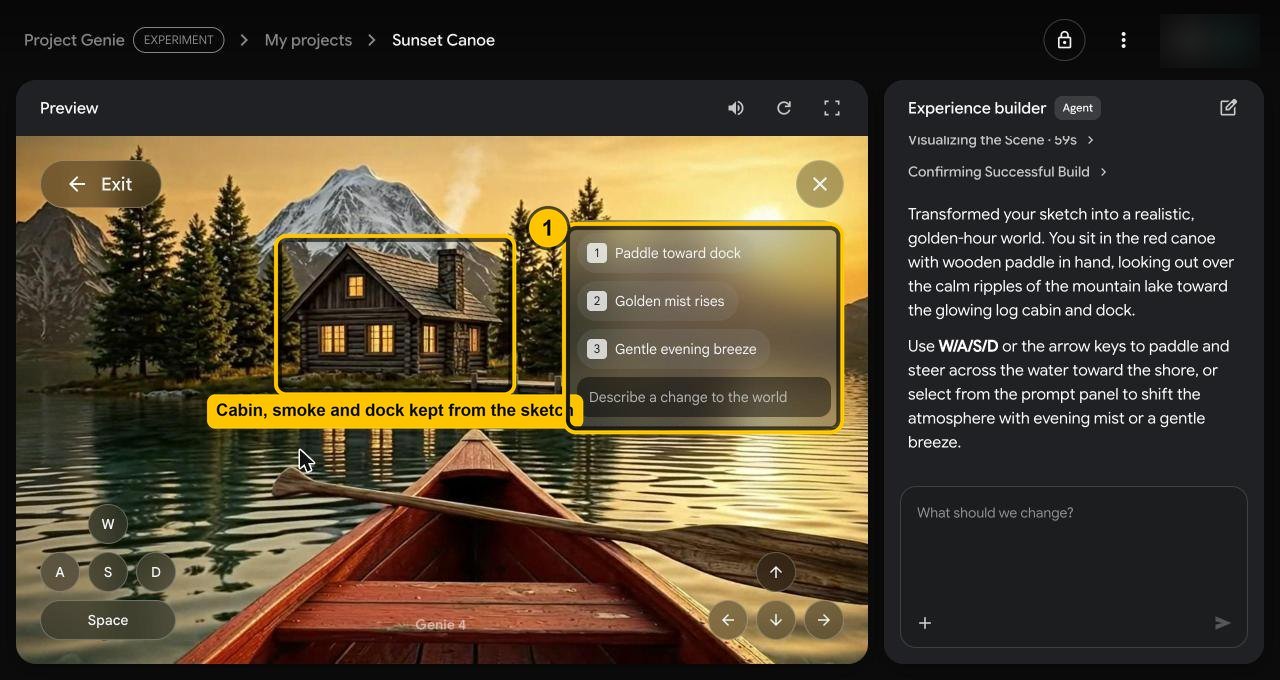
On the Create screen, click + to attach an image, add one sentence about what you want to do in it, keep Genie 4 selected, and click Create. Our flat drawing of a cabin by a lake became a realistic, playable world in about a minute. The cabin, chimney smoke, dock and mountains all stayed where we drew them.
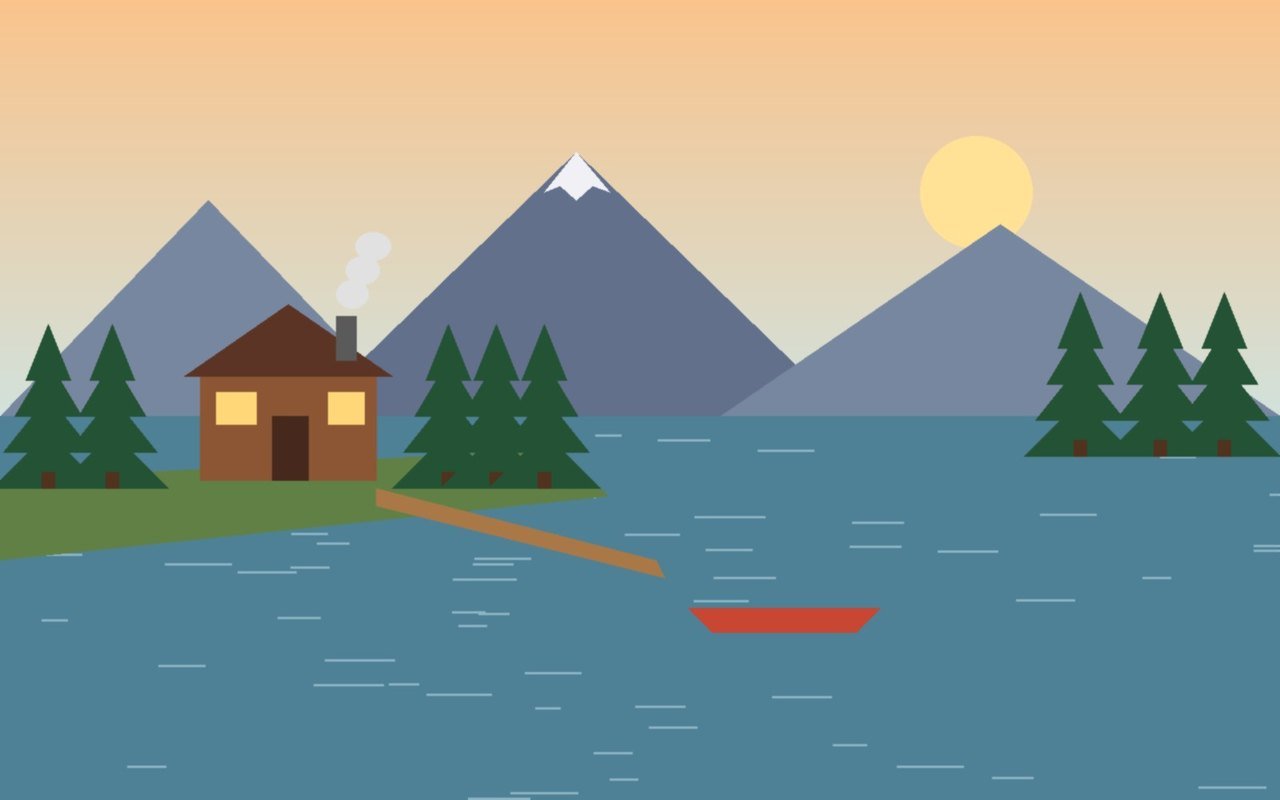
The image we used
To avoid using someone else’s photo, we drew a deliberately simple picture: a cabin, a lake, a dock, a red canoe, pine trees and three mountains at sunset.
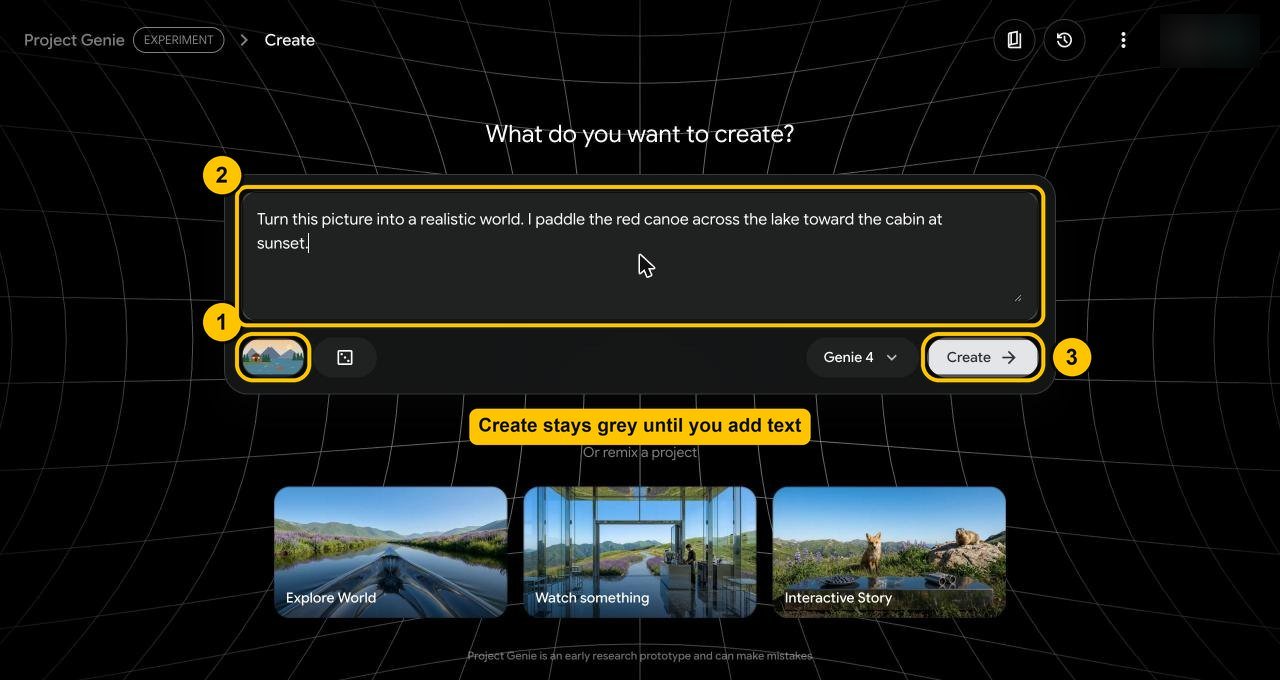
Step 1 — Attach the image and add a sentence
On the Create screen, click + (①). Your image appears as a thumbnail in its place. Create stays grey until you type something, so add one sentence (②) that says what you do in the world. Then click Create (③).
Our prompt
Turn this picture into a realistic world. I paddle the red canoe across the lake toward the cabin at sunset.
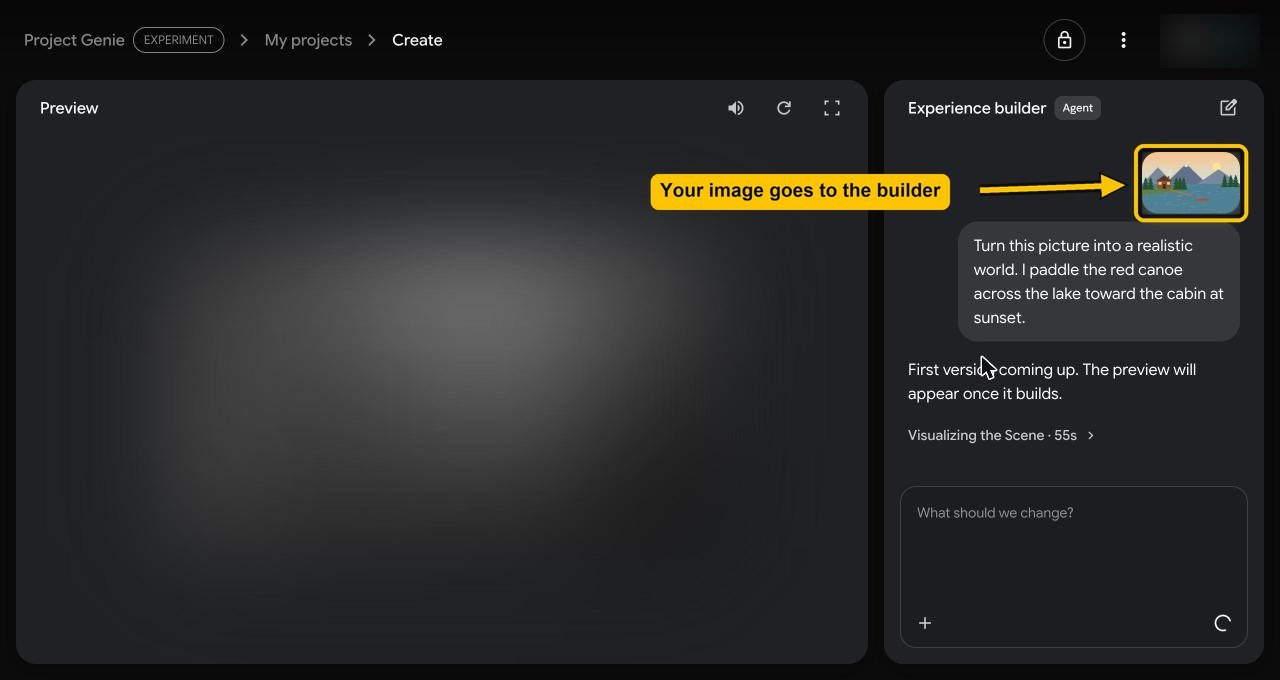
Step 2 — Let the builder read it
Your image shows up in the Experience builder chat with your sentence. Ours said “Visualizing the Scene” and finished in about a minute.
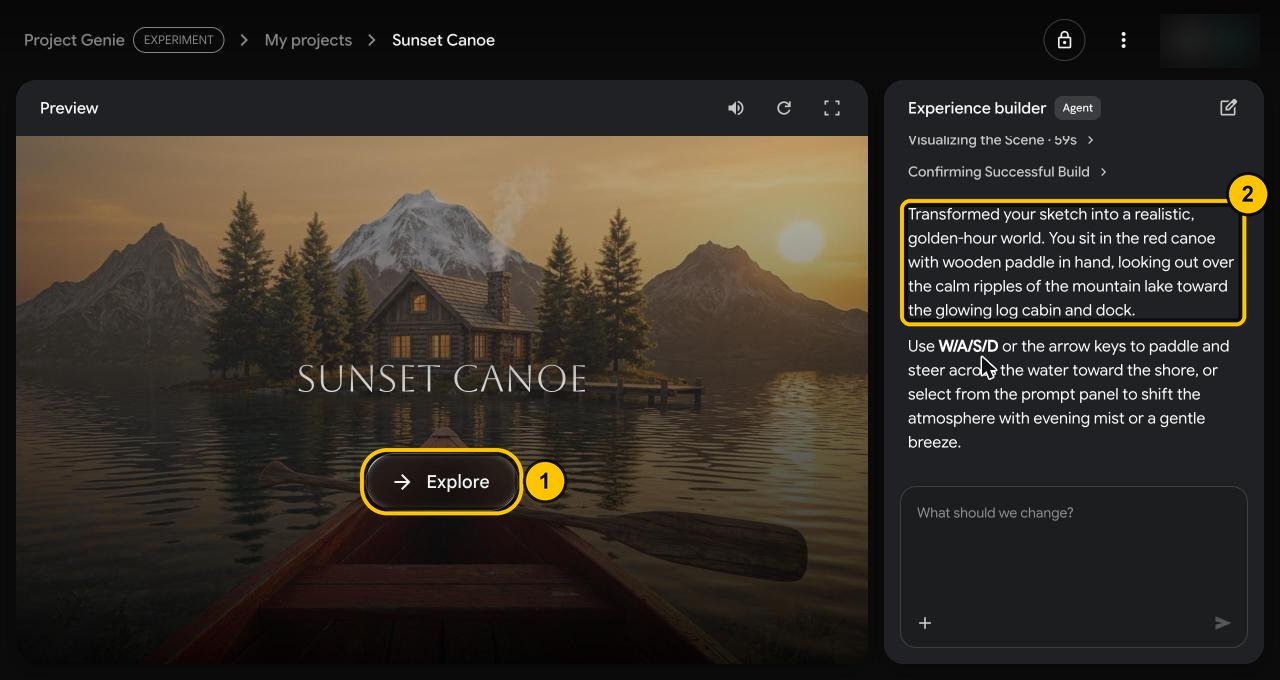
Step 3 — Explore the result
It named the world Sunset Canoe, put us in the red canoe (①), and said W A S D or the arrows would paddle and steer (②). In play mode the cabin, chimney smoke and dock matched our drawing, and the moments were made for this scene: “Paddle toward dock”, “Golden mist rises”, “Gentle evening breeze”.
Tips for better image worlds
- Say where you are: “I paddle the red canoe” put the camera in the canoe. Without it, you may get a fixed viewpoint.
- Use simple, clear shapes: big objects in clear positions carried over best in our test.
- Only upload images you’re allowed to use: your own photos or drawings. Remember that anything you share later can be remixed by others.
- Need more? Open the world with Edit and ask the Experience builder for changes.
Sources & method
We tested this ourselves on 20 November 2026 in a Project Genie account that got access through Google AI Pro. Every screenshot comes from that session. The arrows, boxes and numbers are ours, and personal account details are blurred. Project Genie is an early research prototype, so the screens and limits may change.
- Project Genie (Google Labs), tested 20 November 2026
- Google Labs waitlist email: “You’re in! Start exploring Project Genie”
- Google DeepMind: Genie 4 launch announcement
Access, product limits, and eligibility can change. Follow the current message in Google’s product and its published terms.